

Purpose
Add, replace, remove, or set the default payment method for a customer.
Before you begin
- Confirm the customer’s identity and authorization.
- Never record full card numbers or security codes.
- Check whether the customer has active subscriptions or pending payments.
Procedure
- Open Customers, search for the customer, and open the profile.
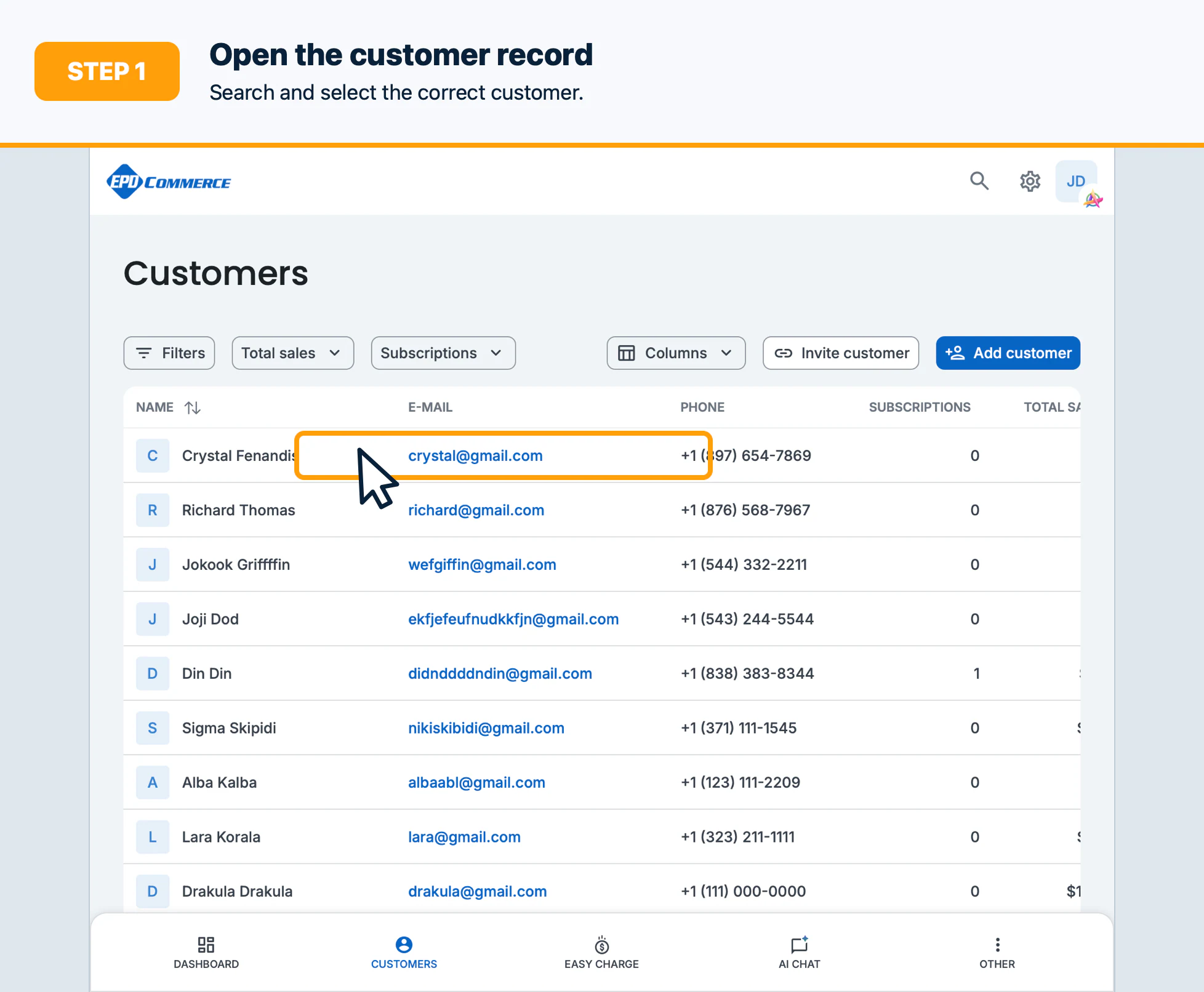
- Open the payment methods section and select Add payment method when adding a card.
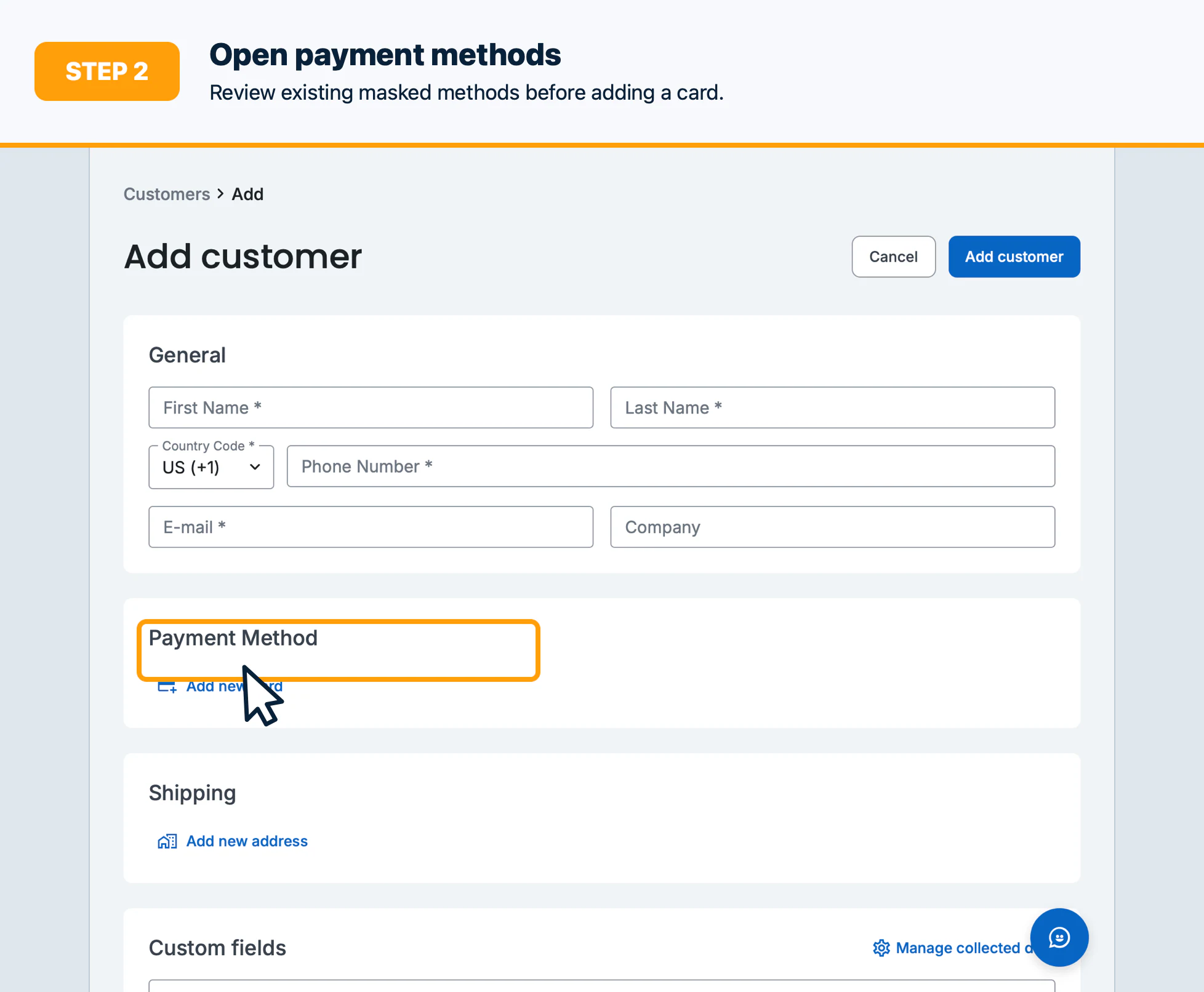
- Complete the secure card form and save it; use the card ending and brand to verify the result.
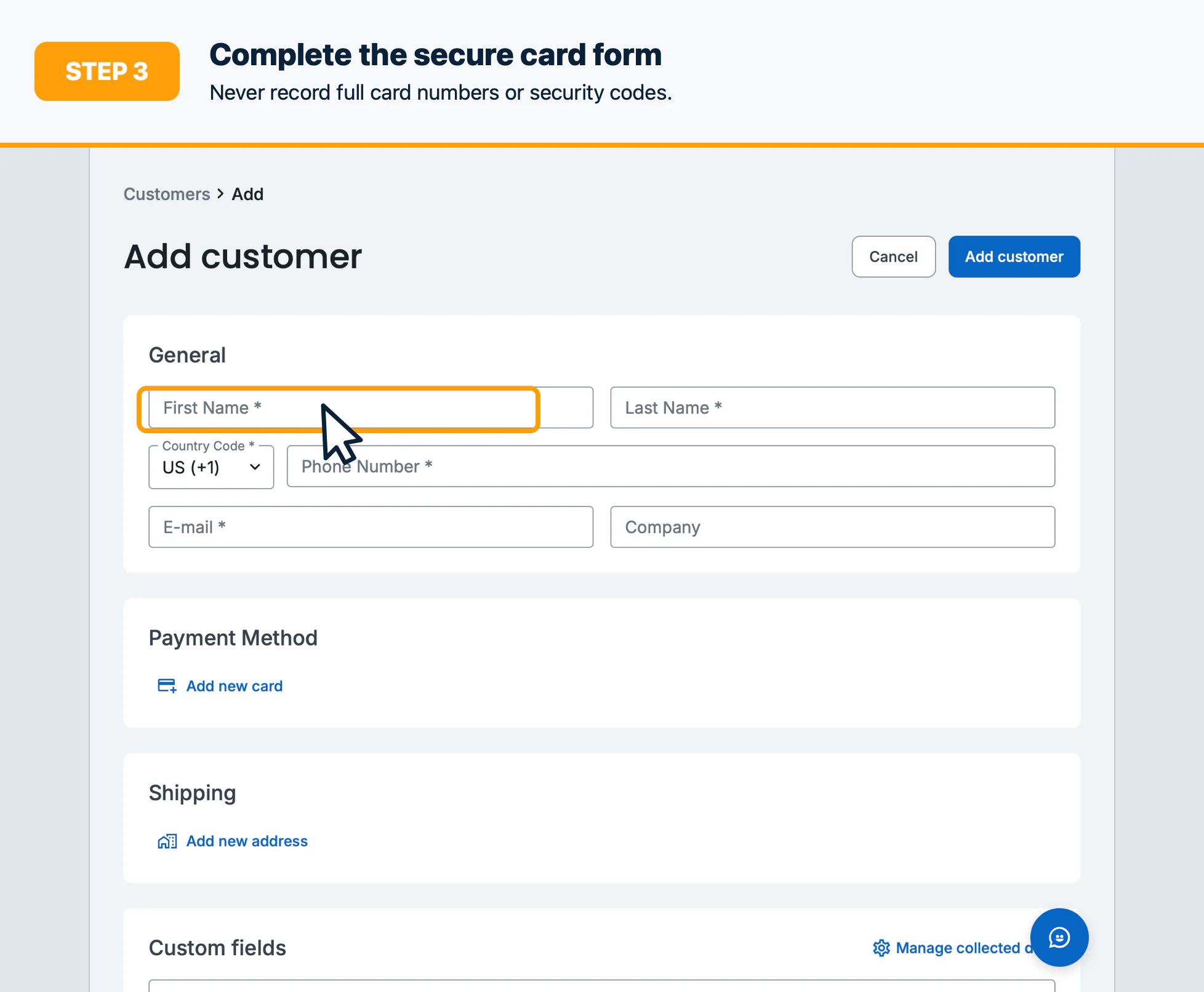
- Select Set as default when future billing should use the new method.
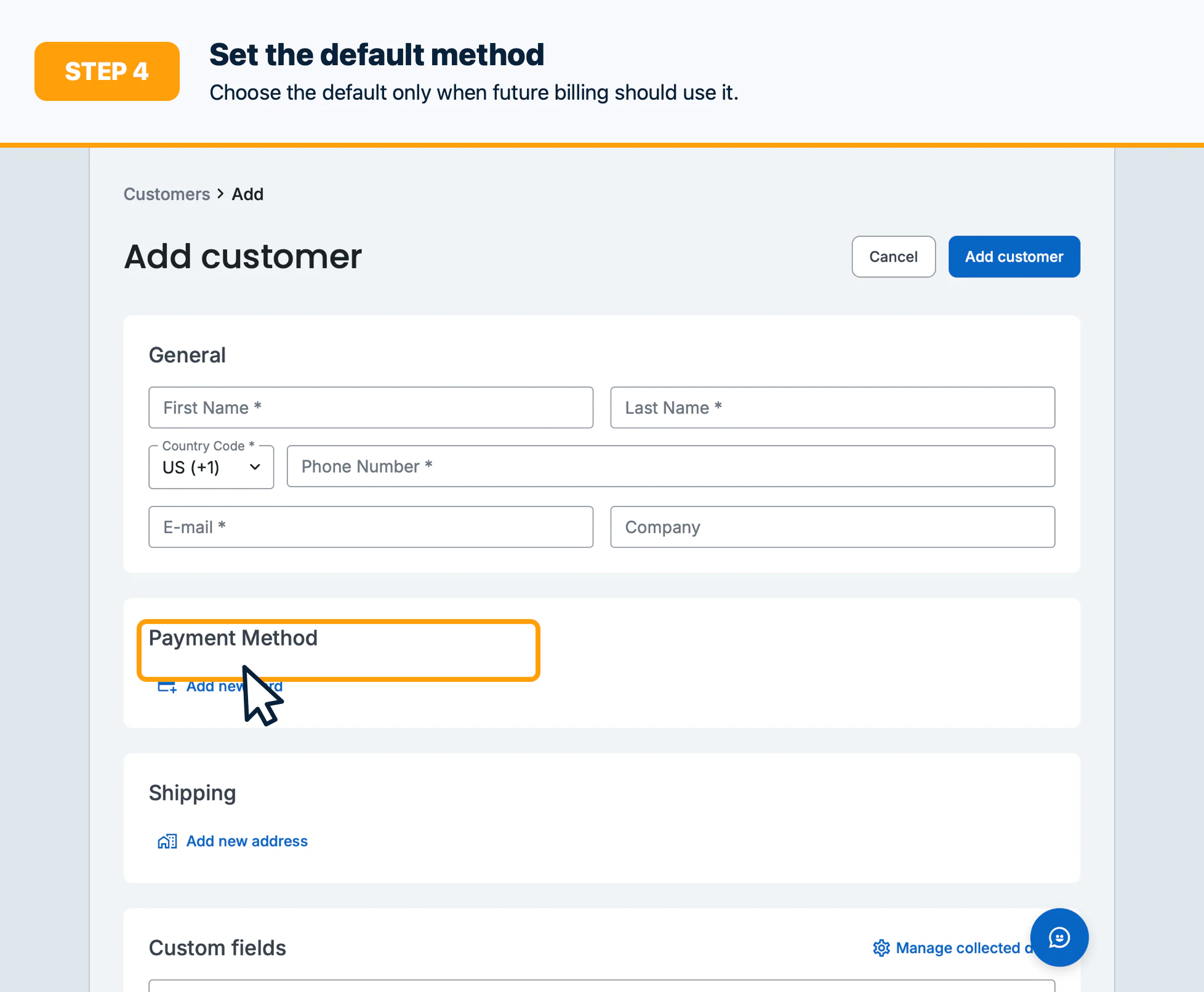
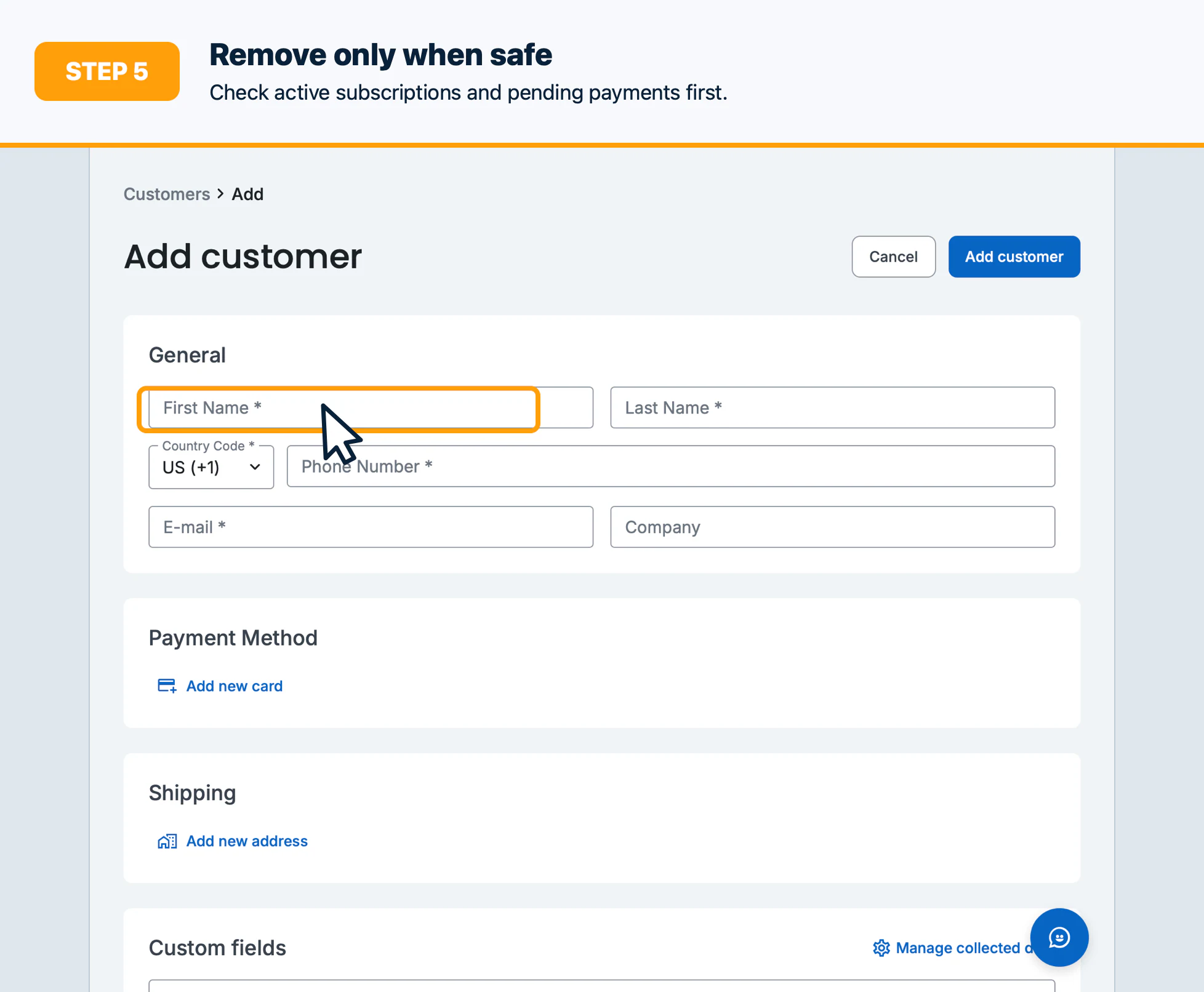
- Select Remove only after confirming no active workflow depends on the method.
Confirm the result
Verify the masked card, default indicator, and subscription/order payment behavior.
Troubleshooting
Use the secure customer card-update link when direct entry is unavailable. Check tokenization errors, permissions, and active-payment dependencies.