

Purpose
Define a reusable subscription offer with clear pricing, cadence, products, and billing behavior.
Before you begin
- Confirm the commercial terms and customer-facing name.
- Decide whether the plan includes a trial, setup fee, or recurring products.
- Verify the required subscription-template permission.
Procedure
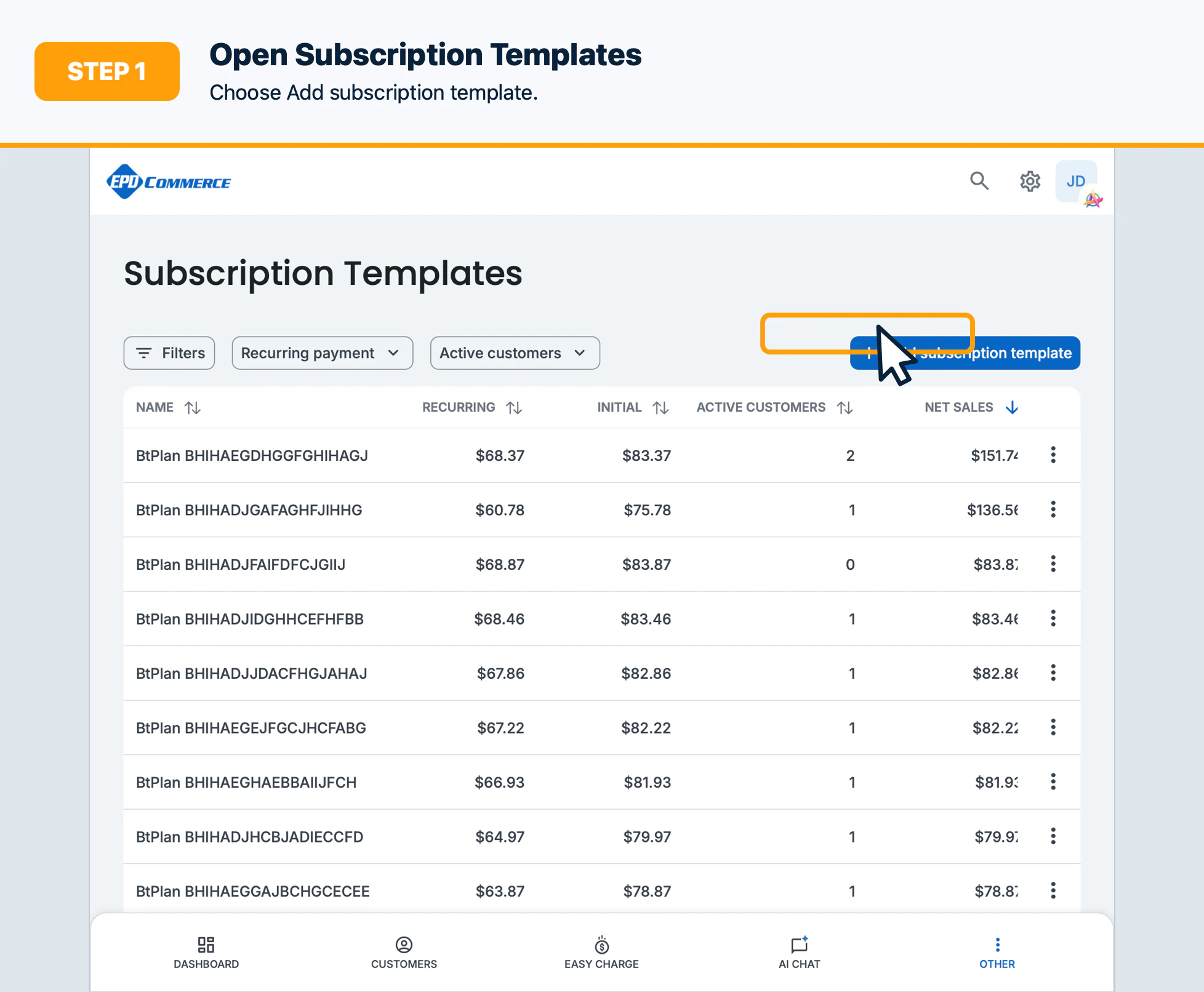
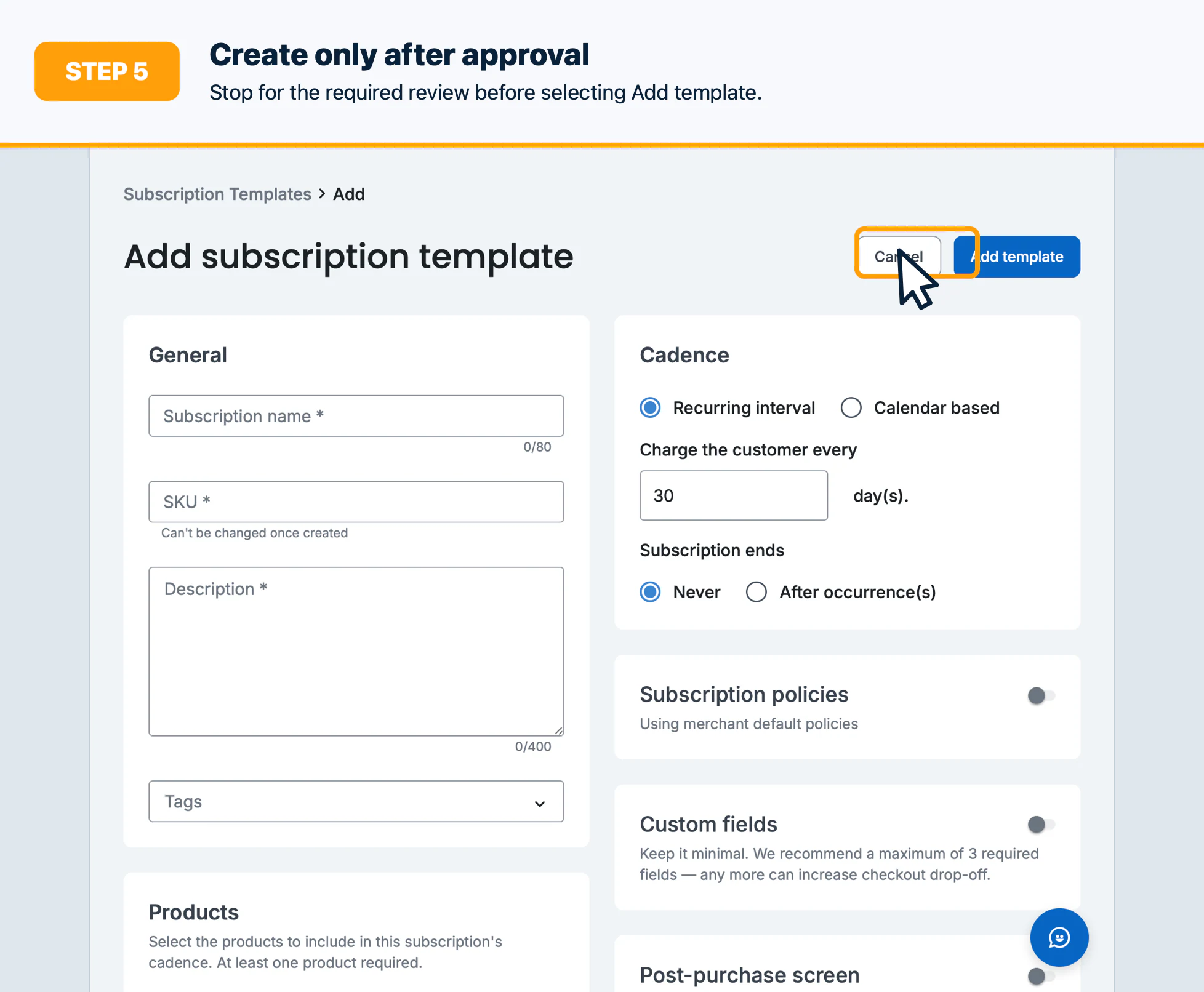
- Open Subscription Templates and select Add subscription template.
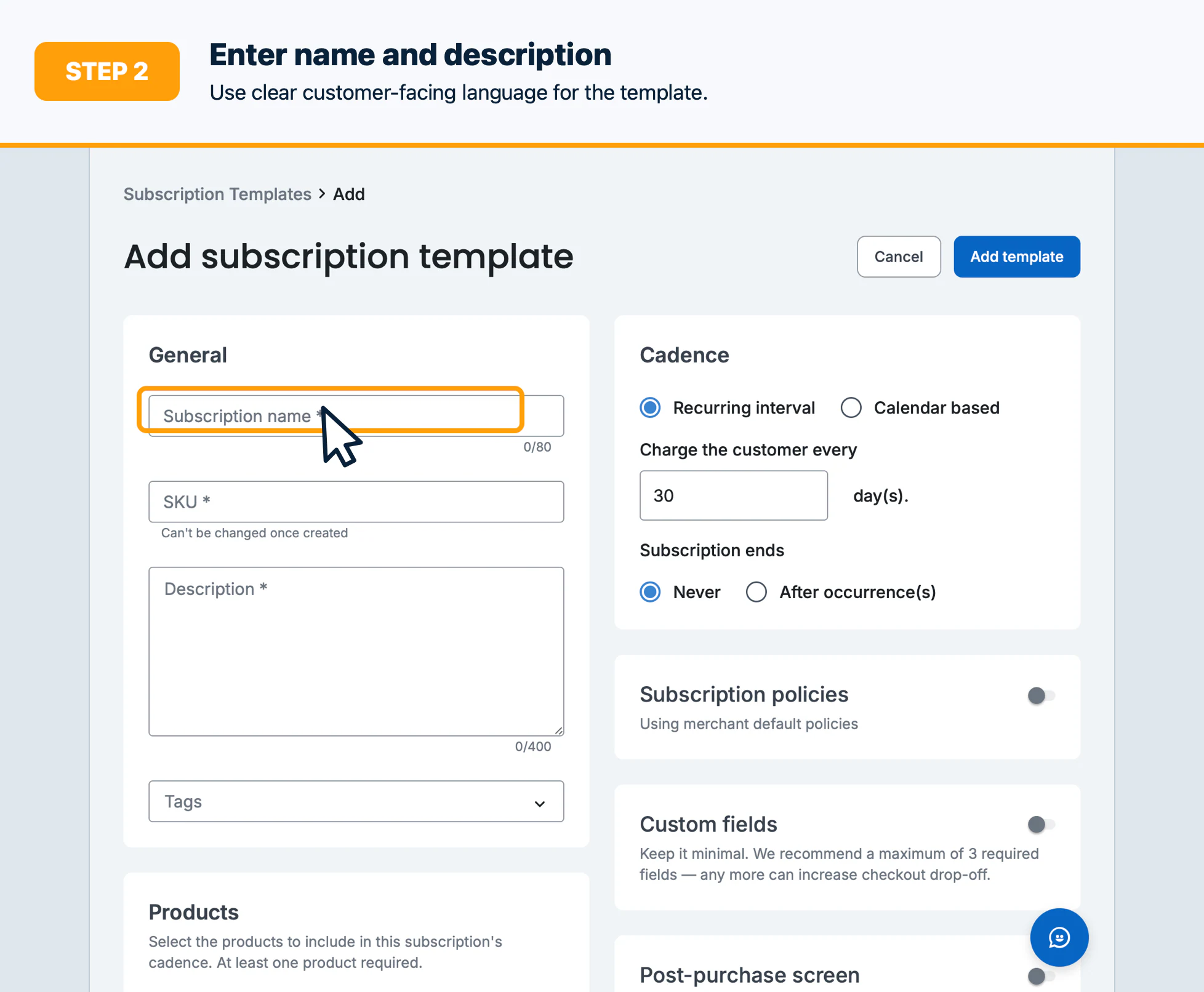
- Enter the template name and description.
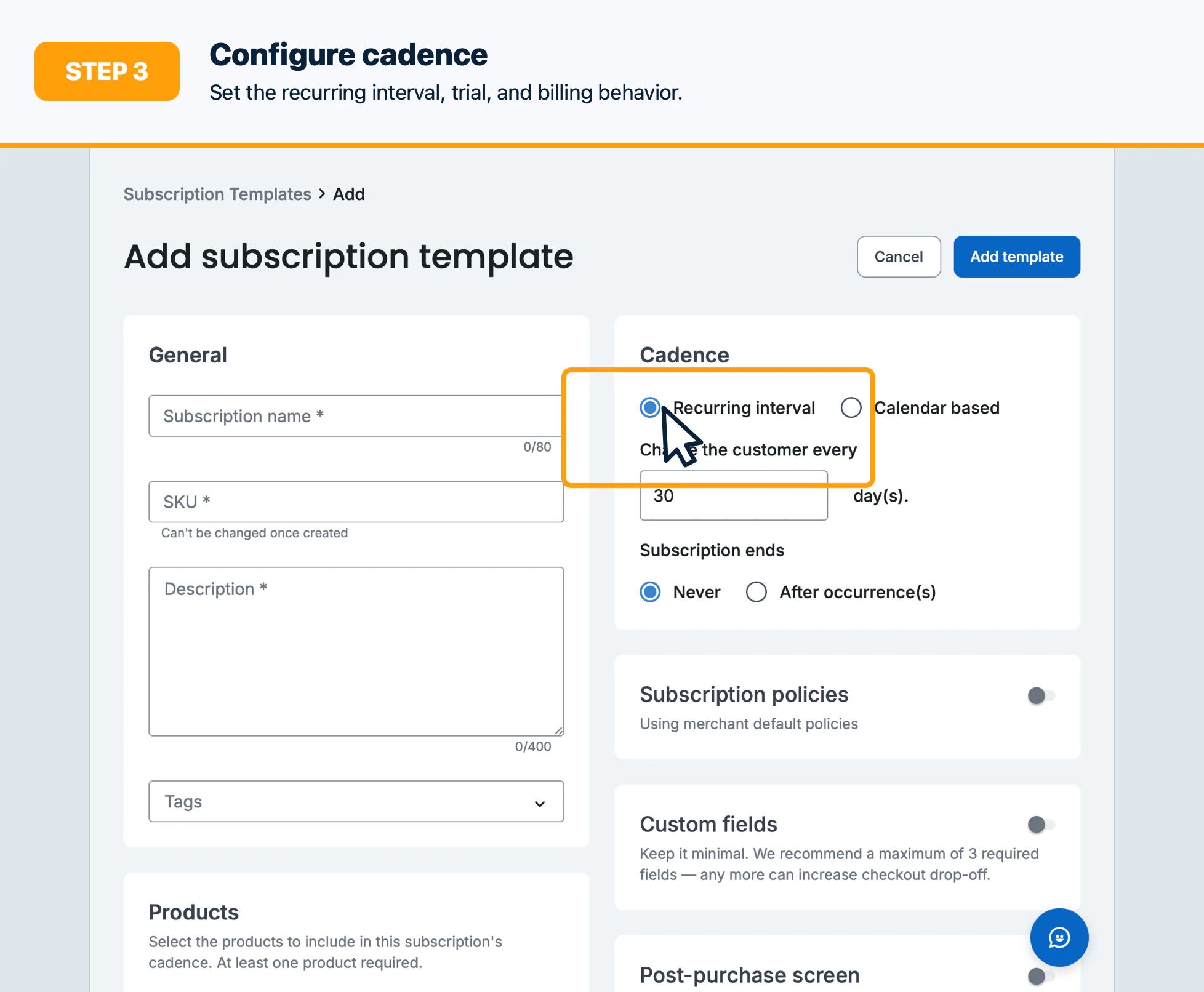
- Configure pricing, billing cadence, trial settings, and any included products or fees.
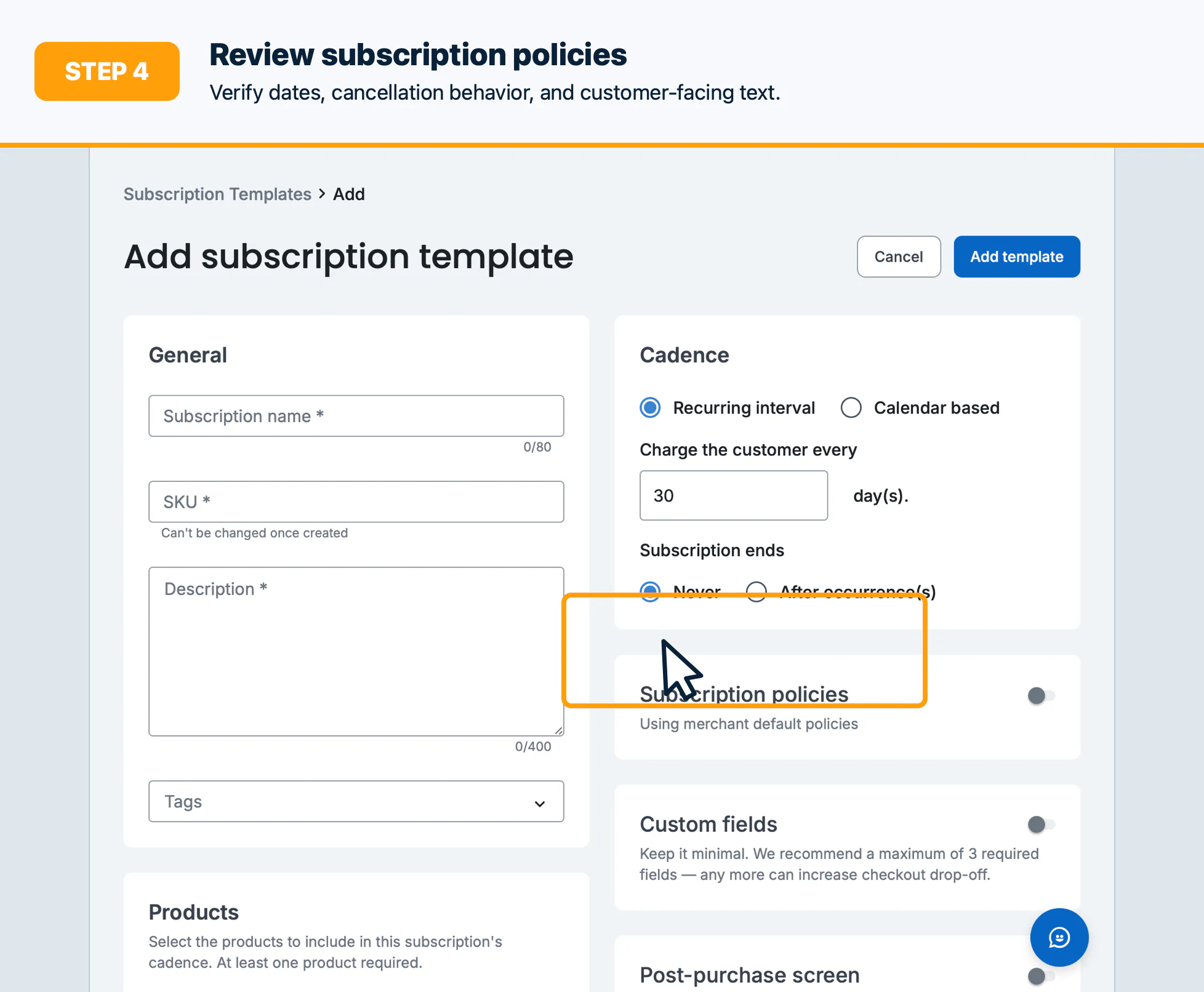
- Review billing dates, cancellation behavior, and customer-facing text.
- Select Create subscription template only after the terms are approved.
Confirm the result
Open the new template and verify its status, price, cadence, included items, and customer-facing description.
Troubleshooting
Check required fields, cadence constraints, product availability, and template-management permissions.