

Purpose
Recognize whether EPD Commerce is using a sandbox or live company before entering customer information, testing a workflow, or processing a payment.
Before you begin
- Confirm which company you are authorized to use.
- Use simulated customer and payment information in a sandbox.
- Treat an environment as live whenever the demo banner is absent or the environment cannot be confirmed.
- Never enter a real card number into a sandbox or test workflow.
Procedure
-
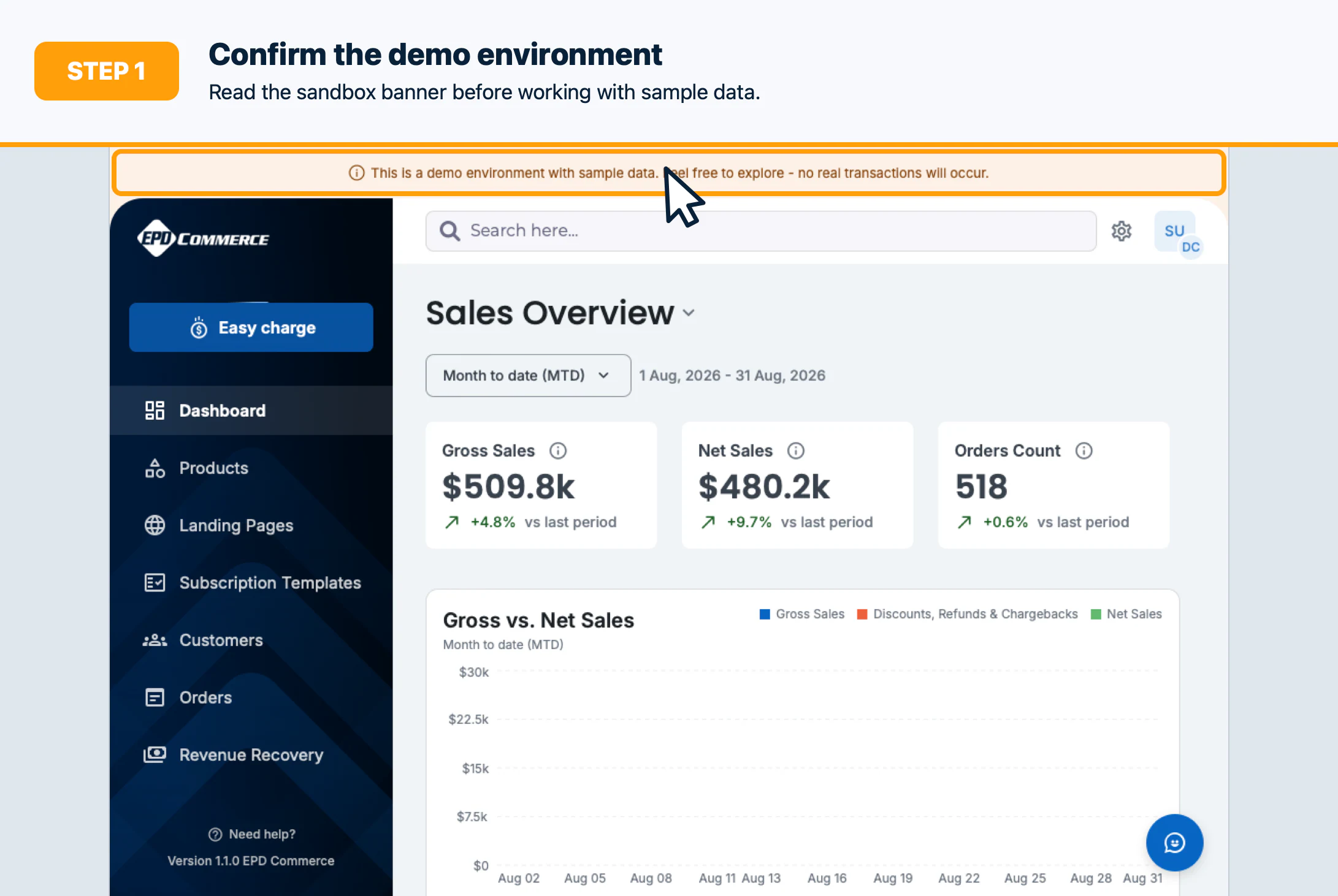
Confirm that the banner at the top of the page states: This is a demo environment with sample data. Feel free to explore - no real transactions will occur. This banner identifies the sandbox interface.
-
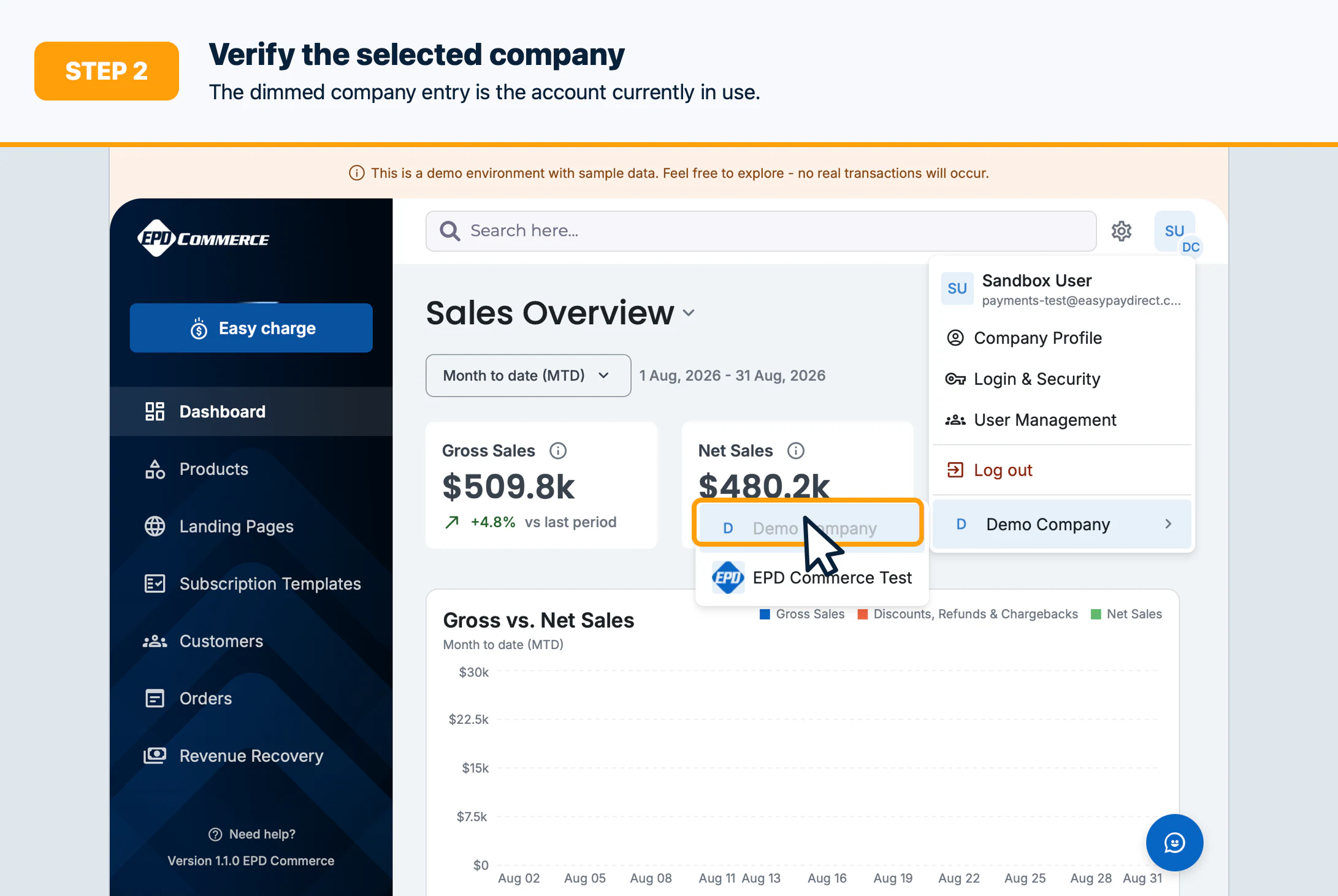
Open the profile menu, open the company submenu, and verify the selected company. The current company appears dimmed and cannot be selected again. A company switch changes the records, configuration, and environment available to you.
-
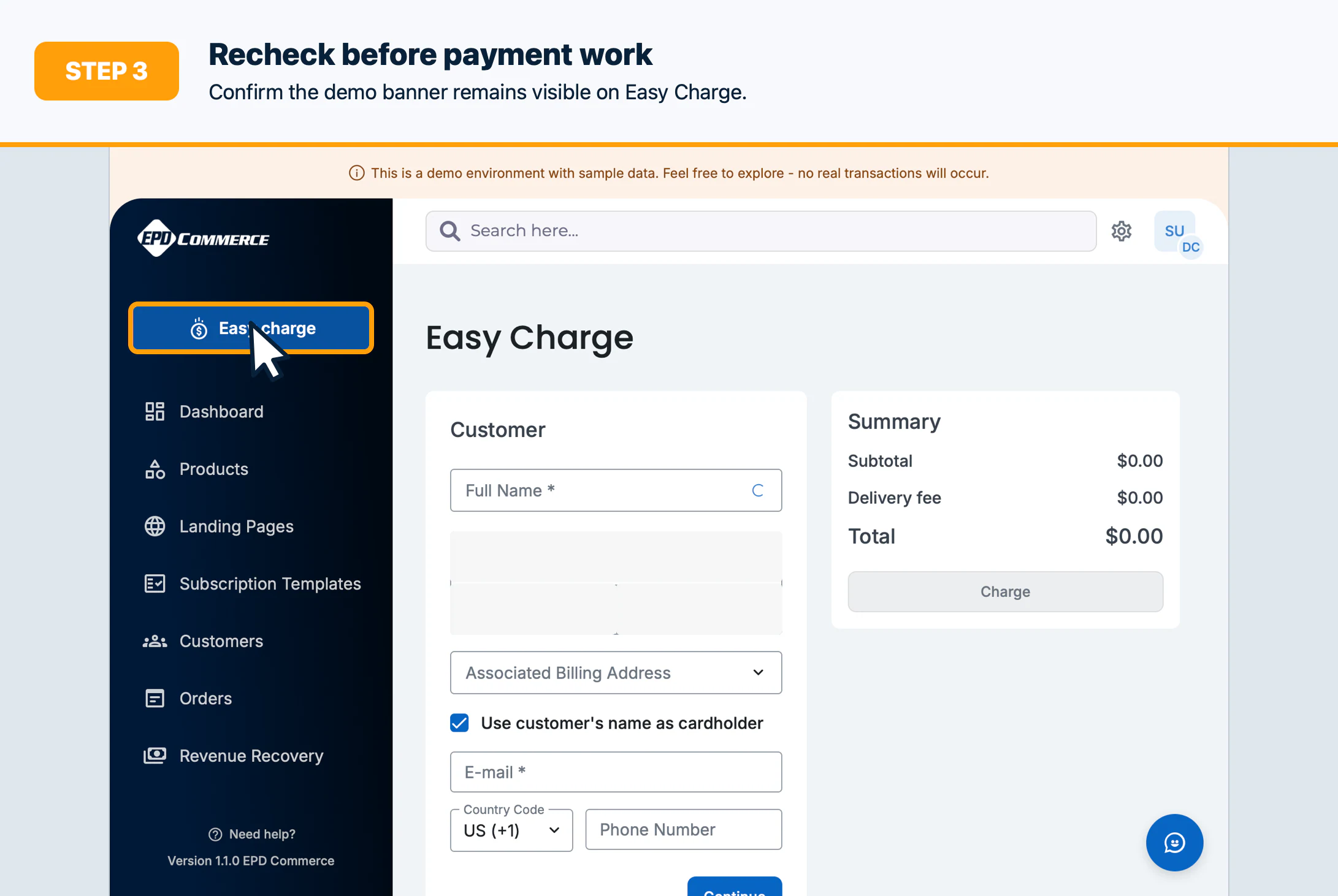
Select Easy charge and confirm that the demo-environment banner remains visible before staging a payment workflow.
-
Stop and verify the company again whenever the banner is absent. In a live company, charges can move real money and changes can affect real customers, products, subscriptions, routing, integrations, and communications.
-
Use only simulated data for sandbox exercises. Follow the applicable feature SOP even in the sandbox, and do not assume that sandbox results prove a live processor or integration is configured correctly.
Confirm the result
Before continuing, you should be able to state:
- The active company name.
- Whether the demo-environment banner is present.
- Whether the intended action is a sandbox exercise or authorized live work.
- Whether the data you plan to enter is appropriate for that environment.
Troubleshooting
- The demo banner is absent: Treat the company as live. Do not test or submit a transaction until the environment is confirmed.
- The expected company is unavailable: Ask an administrator to verify your company membership and permissions.
- The company changed unexpectedly: Stop the workflow, reopen the profile and company menus, and verify the selected company before continuing.
- A sandbox feature differs from live: Check feature availability and processor configuration. Some integrations, messages, and gateway responses are simulated or limited in the sandbox.