

Purpose
Create a custom-amount, product, or subscription charge from one guided screen.
Before you begin
- Confirm the customer authorized the amount and payment method.
- Search for the existing customer before entering a new one.
- A phone number is optional for a new Easy Charge customer. If provided, it must be unique in the merchant account.
Procedure
- Select Easy charge in the left navigation.
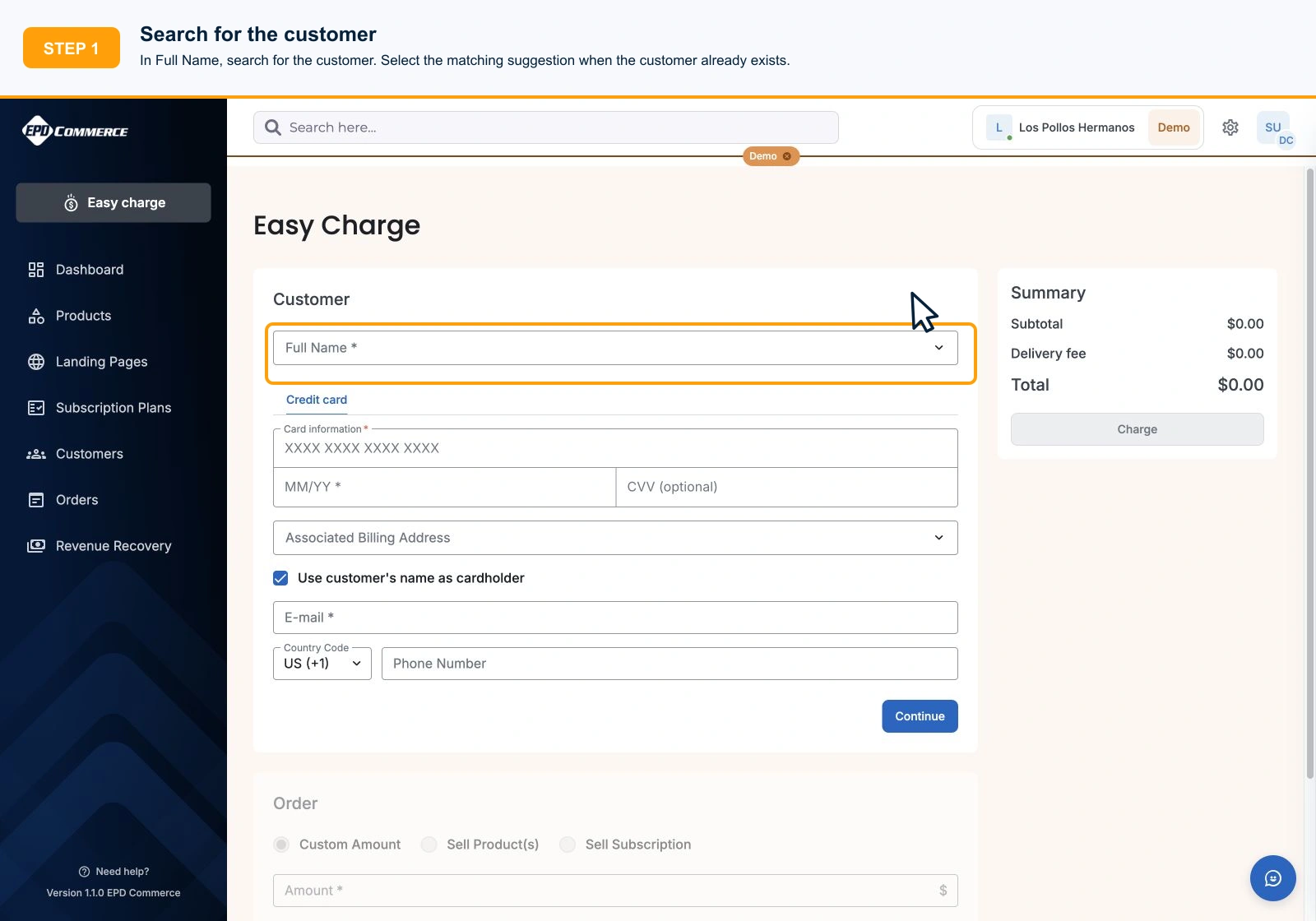
- In Full Name, search for the customer. Select the matching suggestion when the customer already exists.
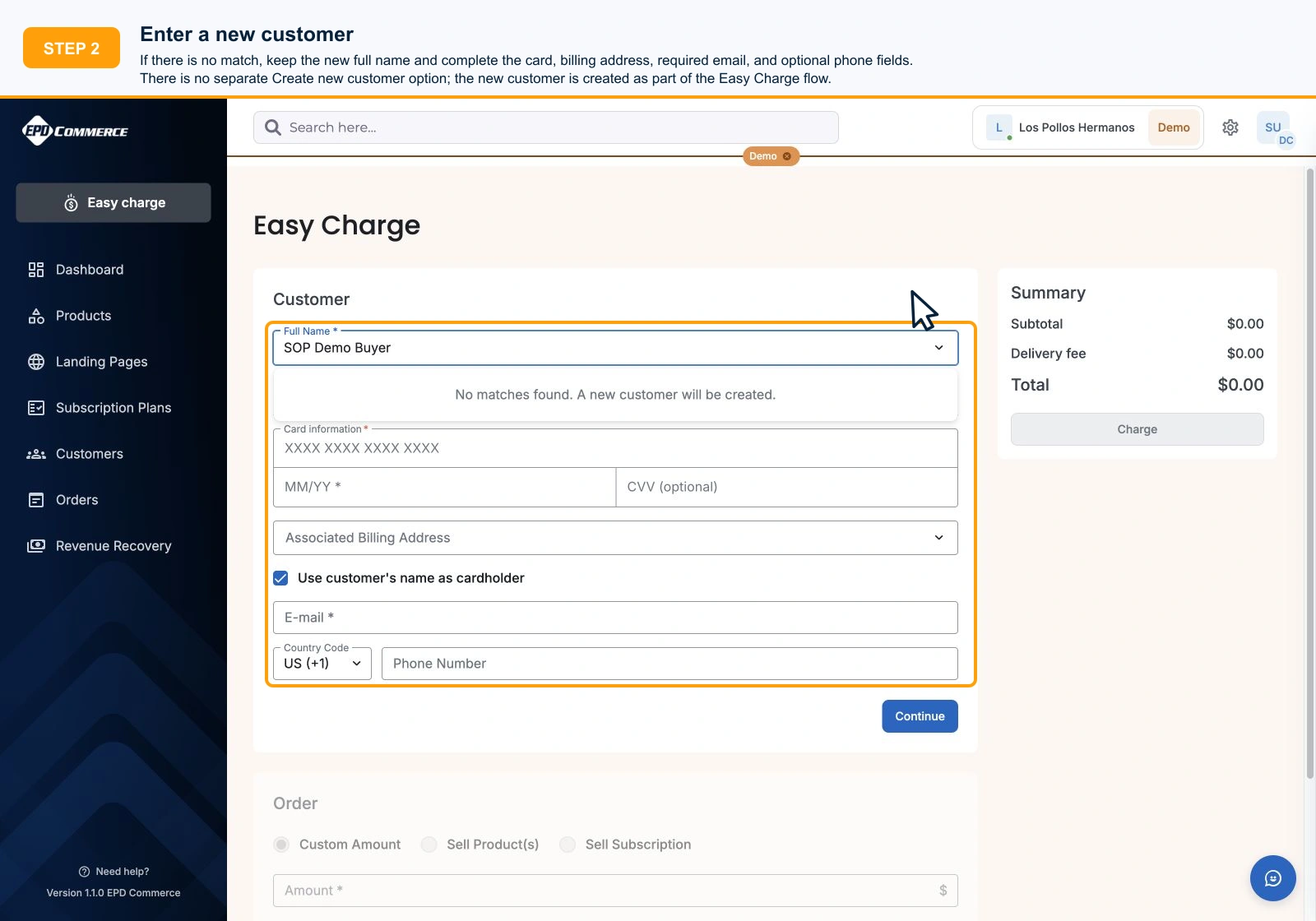
- If there is no match, keep the new full name and complete the card, billing address, required email, and optional phone fields. There is no separate Create new customer option; the new customer is created as part of the Easy Charge flow.
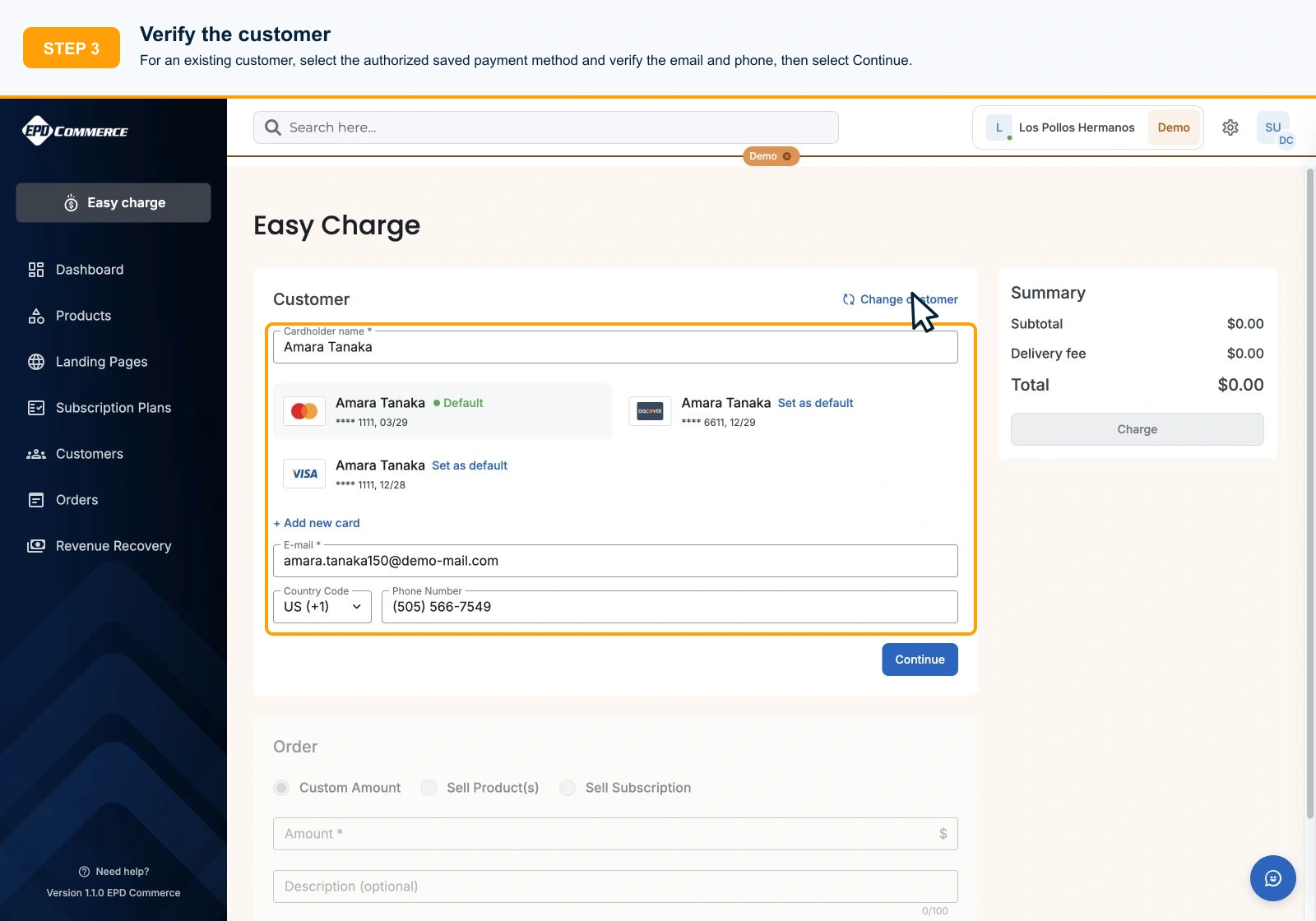
- For an existing customer, select the authorized saved payment method and verify the email and phone, then select Continue.
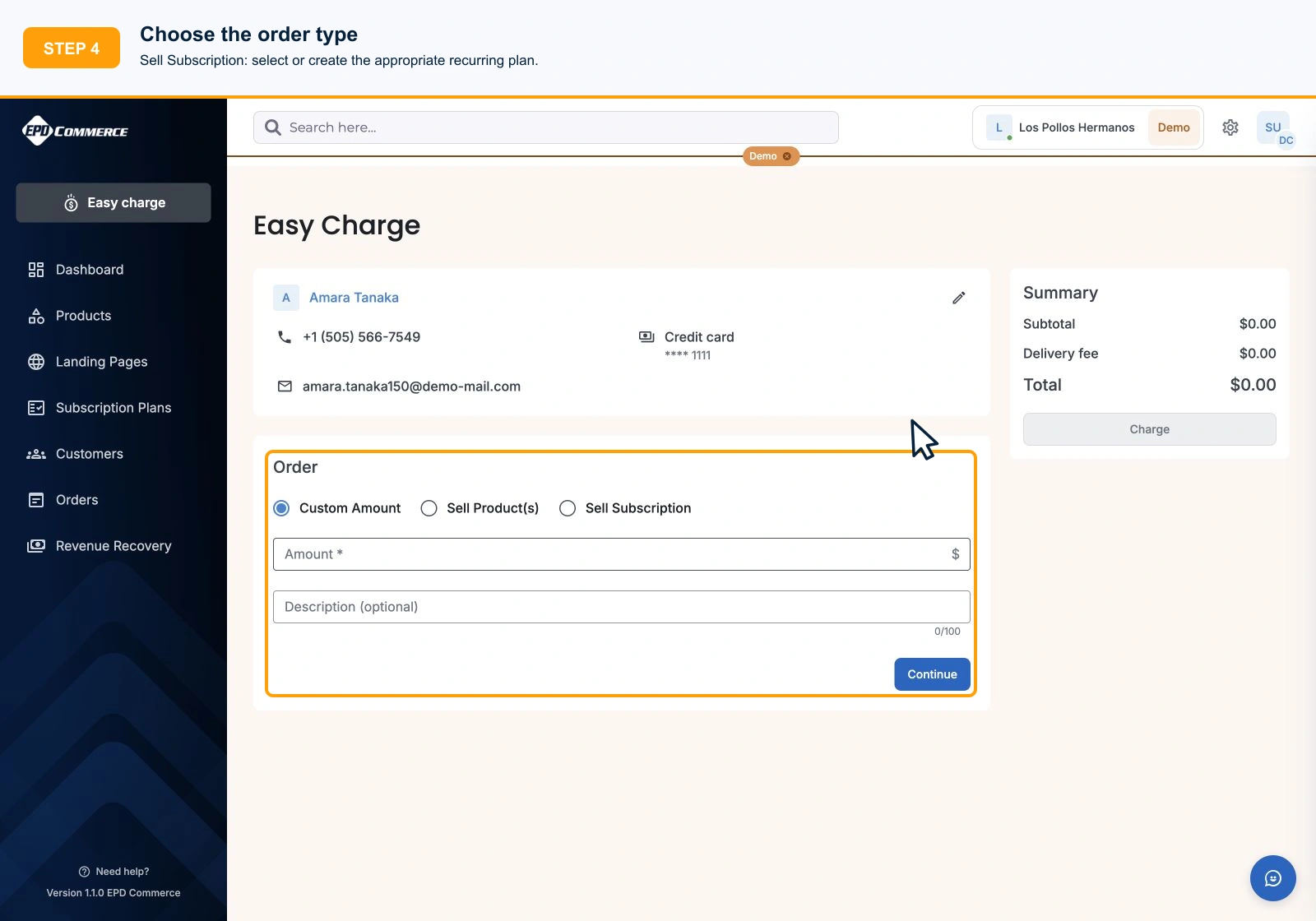
- Choose the order type:
- Custom Amount: enter the amount and optional description.
- Sell Product(s): add the product line item; + Add product can open the product builder when a new product is needed.
- Sell Subscription: select or create the appropriate recurring plan.
- Select Continue, verify the subtotal, delivery fee, and total in Summary, then select Charge once.
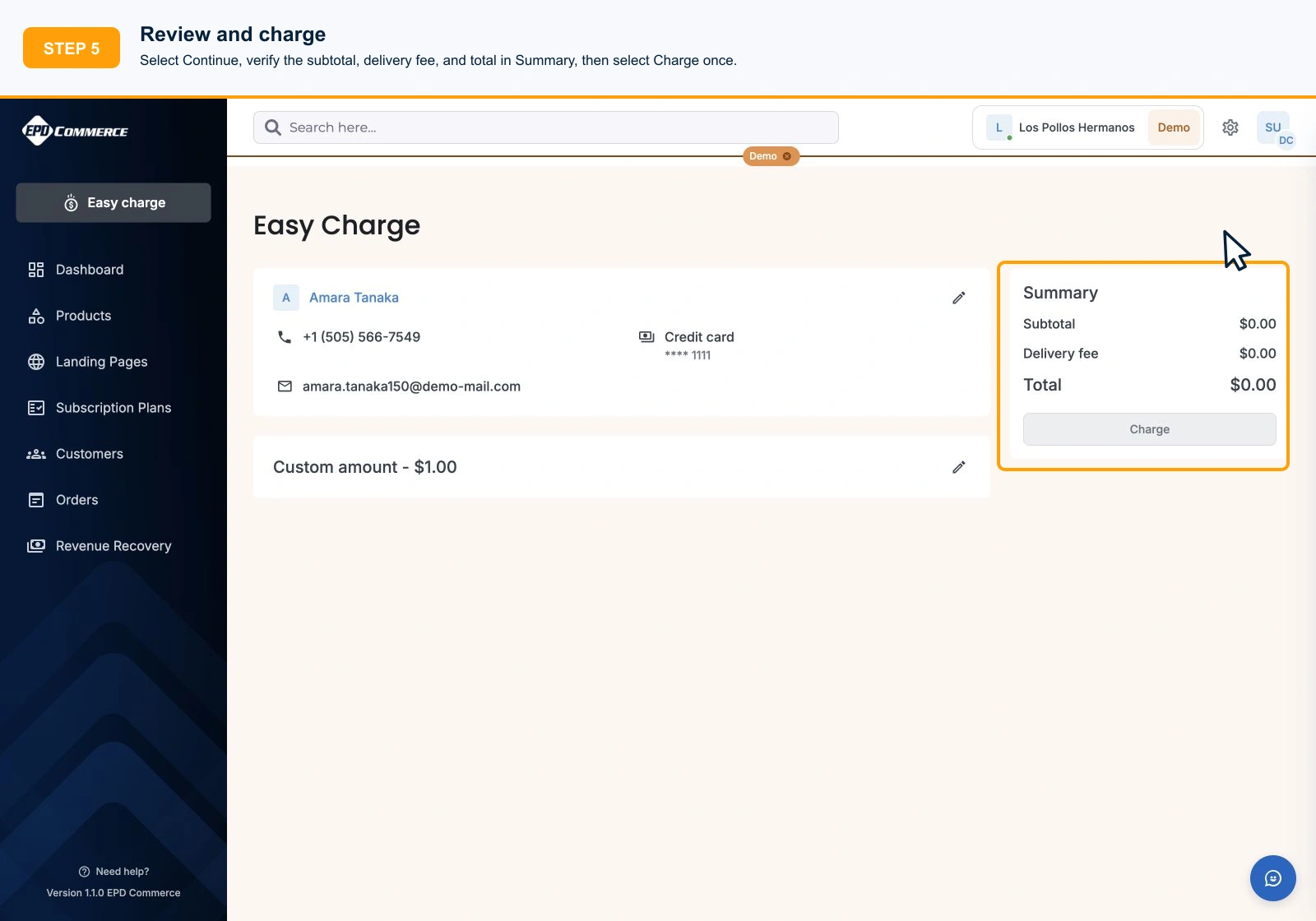
Demo total mismatch: The final screenshot shows a $1 custom amount but a $0 summary and a disabled Charge button. It illustrates the control location only. If the actual summary does not match the intended charge, stop and resolve the discrepancy before submitting.
Duplicate-phone behavior
Easy Charge does not allow a new customer to reuse a phone number already stored on another customer. For a spouse, household, or business team that shares a number, select the existing customer only when it is truly the same billing profile. Otherwise leave the optional phone blank or use the new customer’s unique direct number.
Troubleshooting
- No Create customer option appears: This is expected. Enter the new person’s name and details directly.
- The phone is rejected: The number already belongs to another customer. Search for that profile, or leave the optional phone blank for a genuinely different customer.
- Continue is unavailable: Complete the required customer and payment fields.
- Charge is unavailable: Complete the order step and make sure the total is greater than zero.
- The charge is processing: Do not select Charge again. Wait for the result or review the new order.